
How to Connect Google to SmartLife?
Controlling smart devices with Google Home offers a convenient way to manage your home environment with just your voice. This guide provides clear, step-by-step instructions to help you connect your smart devices to Google Home, ensuring a smooth setup process. By following these steps, you’ll be able to easily add, configure, and control your devices using Google Assistant, making your smart home experience more intuitive and accessible. Whether you’re setting up for the first time or linking new devices, this guide will walk you through every essential step.
Prerequisites
Before you can control smart devices using Google Home, ensure the following requirements are met:
- A stable Wi-Fi network is available to access Google services.
- A Google Home smart speaker or an Android device with Google Assistant is ready.
- The latest version of the Google Home app is installed.
- The latest version of the Google app is installed (if using an Android device).
- A Google account is created and active.
- The mobile device’s system language is set to English (United States).
- The smart device you want to control is set up and ready.
Step 1: Add and Rename the Device in English
- Log in to the Smart Life app, add your smart device, and rename it using a simple English name, such as “bedroom light.”
Step 2: Configure Google Home and Add Your Device
- Download the Google Home App
- For iOS: Log in to the App Store with an Apple ID, search for and download Google Home.
- For Android: Go to Google Play, search for and download Google Home.
Step 3: Link Your Smart Life App Account
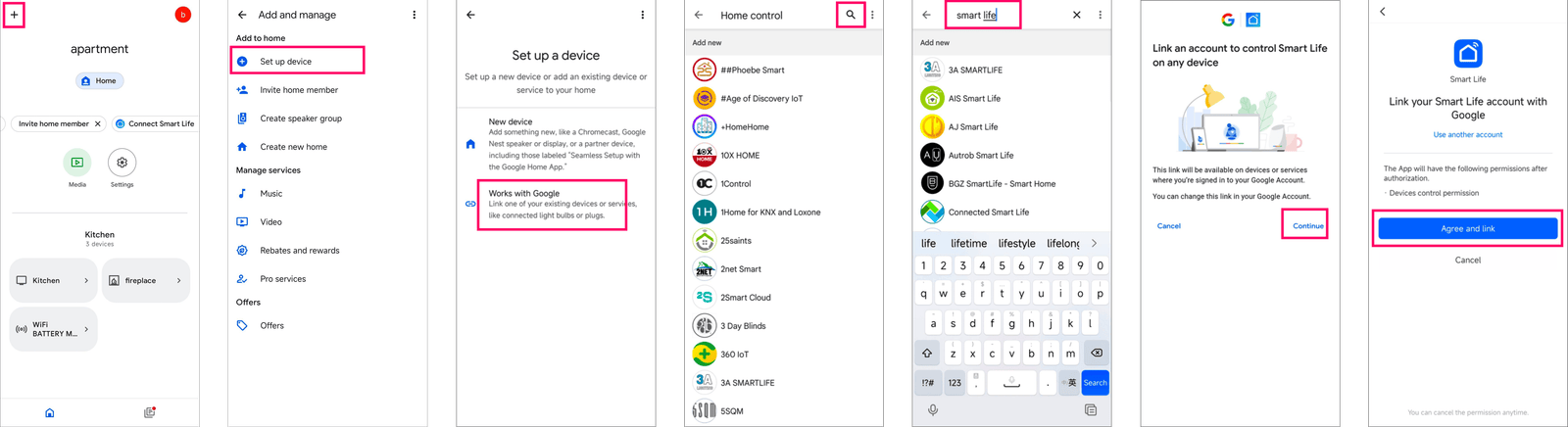
Method 1: Linking via Google Home App
-
Open the Google Home app and tap the + icon in the top left corner of the home screen.
-
Select Set up device > Works with Google.
-
Tap the search icon in the top right corner, then search for “Smart Life.”
-
Select the Smart Life app from the results and tap Continue. The Google Home app will open Smart Life for linking. Tap Agree and link and wait for the process to complete. Your Smart Life app is now linked with Google Assistant.
Method 2: Linking via Smart Life App
-
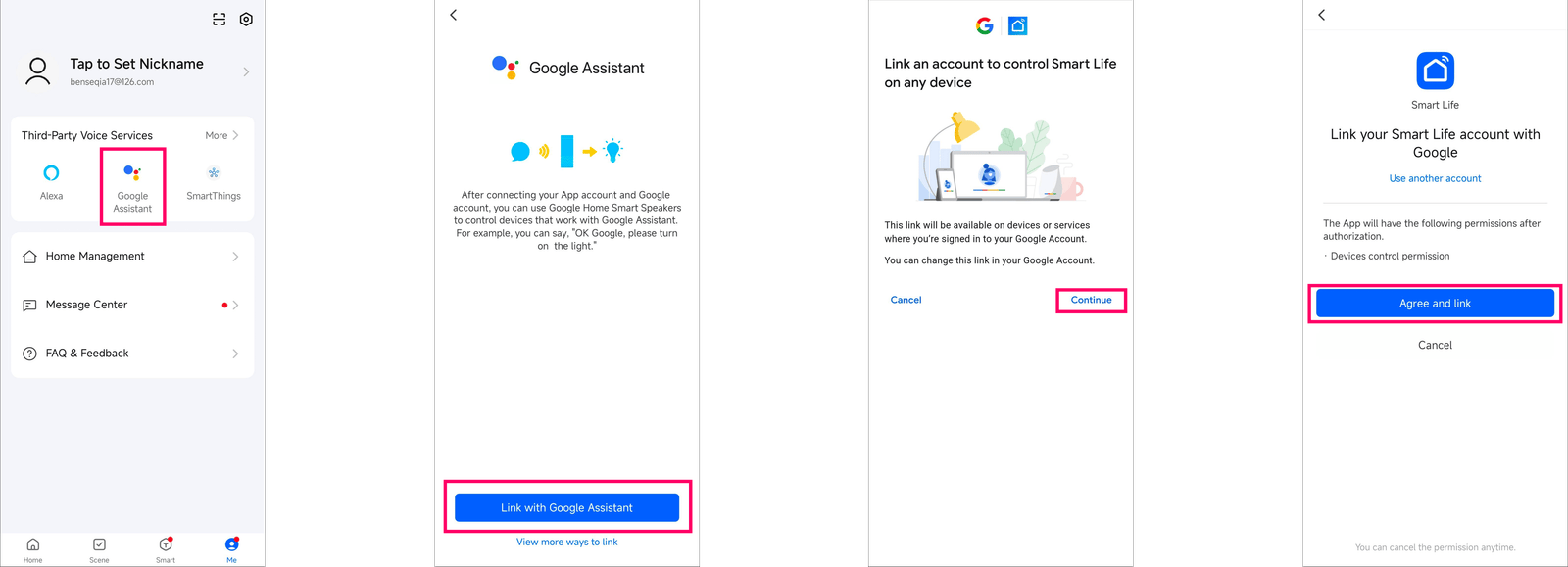
If the Google Home app is already installed, open the Smart Life app and tap Me in the tab bar.
-
In the Third-Party Voice Services section, select Google Assistant > Link with Google Assistant to launch Google Home.
-
Tap Continue to return to the Smart Life app.
-
Tap Agree and link to complete the process. Your Smart Life app is now linked with Google Assistant.
Step 4: Control Smart Devices Using Google Home
You can now control your smart devices via Google Home using voice commands. For example, if you have a bedroom light, you can use the following commands in English:
- “Ok Google, turn on bedroom light.”
- “Ok Google, turn off bedroom light.”
- “Ok Google, set bedroom light to 50 percent.” (adjusts the brightness)
- “Ok Google, brighten bedroom light.”
- “Ok Google, dim bedroom light.”
- “Ok Google, set bedroom light to red.” (changes the color, for color-supported lights)